Four ways to look at the day
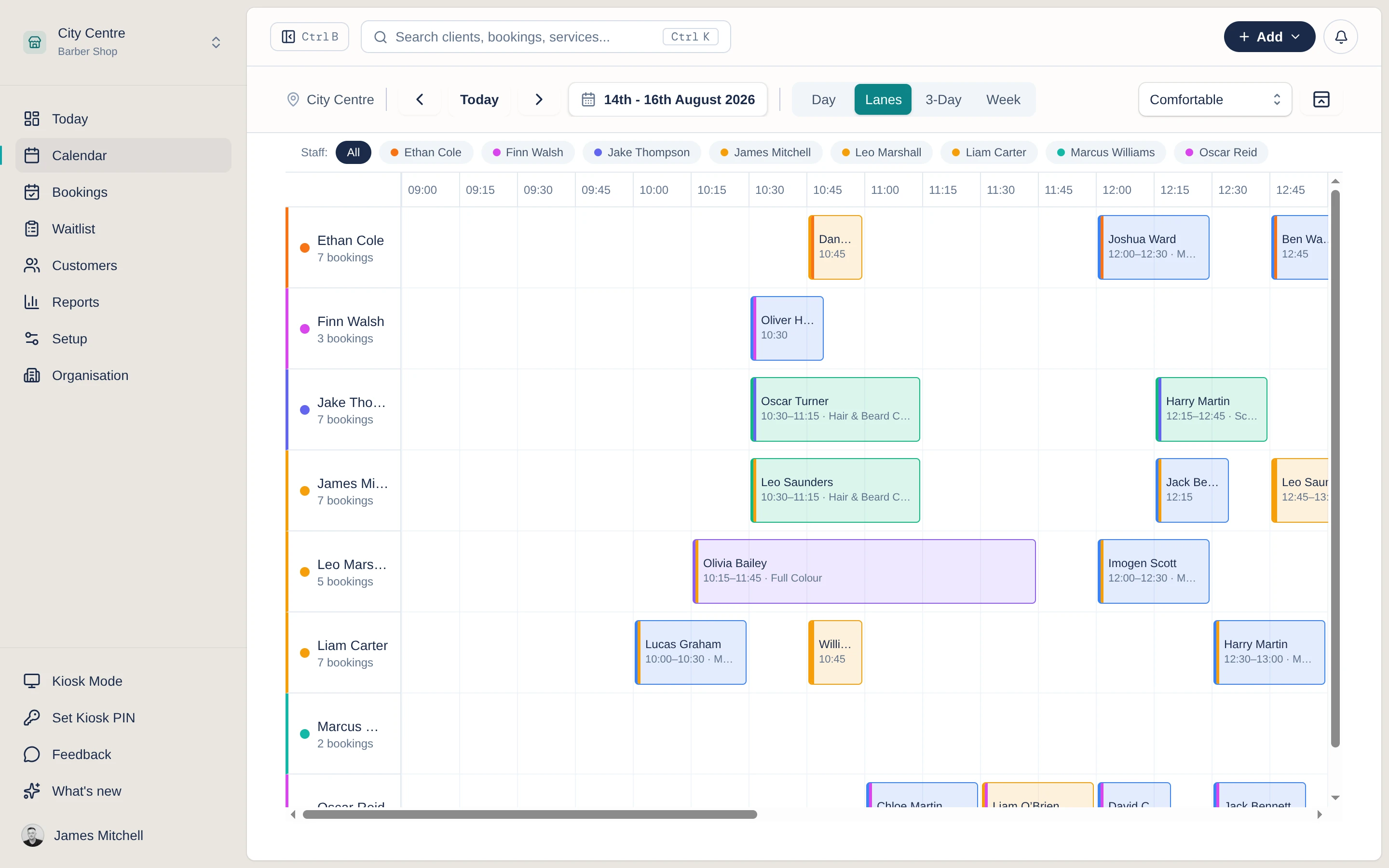
Day puts every chair in a column. Lanes turns that on its side, one row per staff member. Then 3-day and week for a single staff member, to see how the days ahead are filling up.
Bookings & diary
Drag bookings to reschedule, resize appointments to change the length, and see the day by staff member. Clashes are caught before they cost you a chair.
How it works
See every chair side by side in staff columns, or switch to lanes, 3-day or week to plan ahead.
Drag an appointment to a new time or a different staff member, and resize it to change how long it takes.
Conflict detection flags clashes as you go, and the who-is-next bar keeps the next appointment in view.
In the product
In the product
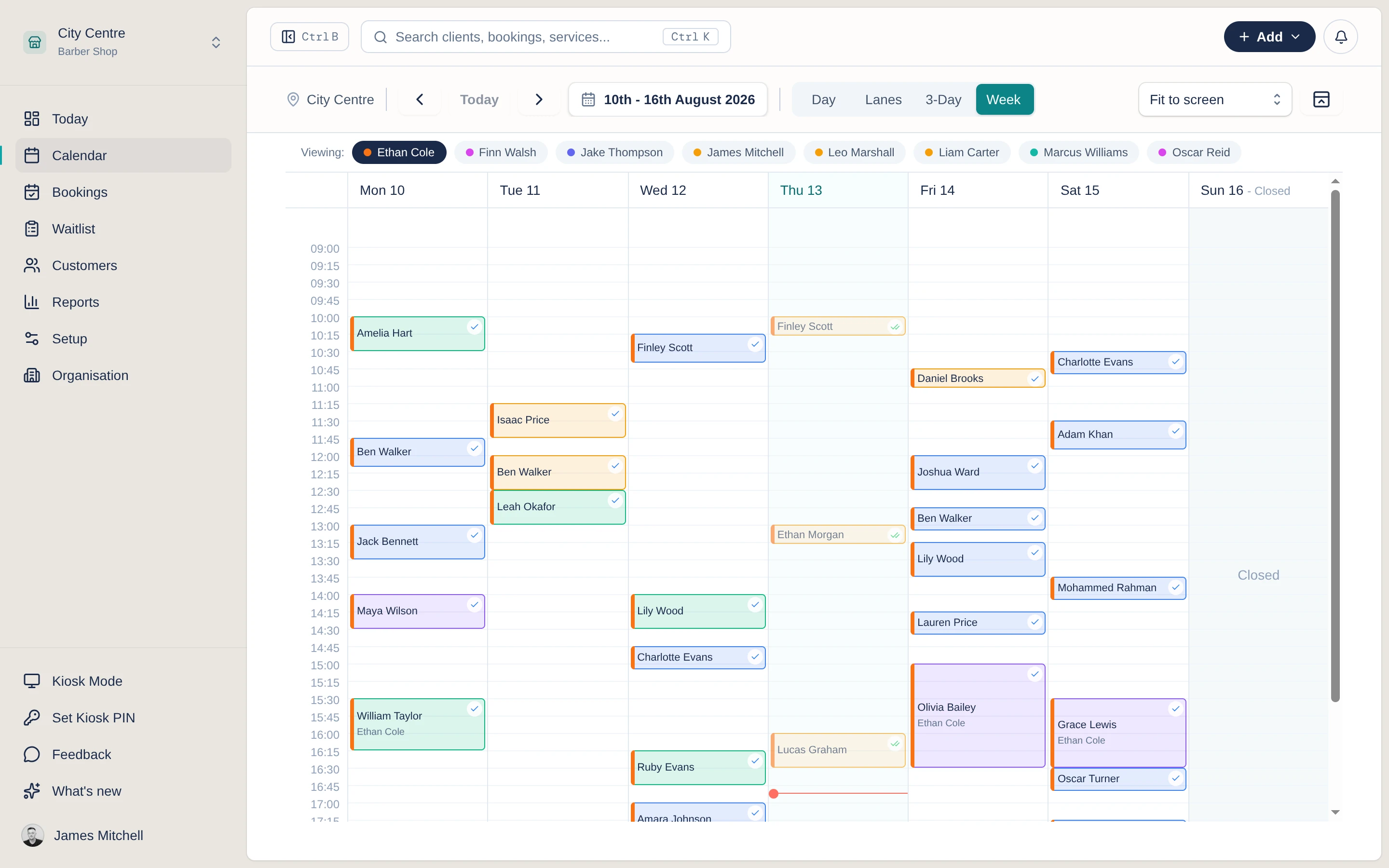
Day puts every chair in a column. Lanes turns that on its side, one row per staff member. Then 3-day and week for a single staff member, to see how the days ahead are filling up.
Reschedule, mark as done, add a note or cancel straight from the appointment, no digging through menus.
A running bar shows the next appointment across the shop so nobody gets left waiting.
In detail
Move an appointment to a new time or staff member by dragging it. Everyone sees the change straight away.
Grab the edge of a booking and drag to make it longer or shorter when a service runs over or under.
Switch views to suit the moment: every chair side by side, one row per staff member, or the days ahead for one of them.
See each team member in their own column so the day reads clearly, however many are in.
Overlaps and double-bookings are flagged as they happen, before they turn into an awkward morning.
A live bar keeps the next appointment across the shop in view, so the front desk always knows what is coming.
Questions
The questions shop owners ask us most about this.
Yes. Drag any appointment to a new time or a different staff member, and drag its edge to resize the duration. The change is saved as soon as you drop it.
Day, lanes, 3-day and week. Day and lanes both show every staff member at once, day in columns and lanes in rows. The 3-day and week views follow one staff member so you can see how their days ahead are filling up.
Conflict detection flags overlaps and clashes as they happen, so you can catch a double-booking before it becomes a problem.
Yes. The who-is-next bar shows the next appointment across the shop, and right-click actions let you reschedule, add a note or mark a booking done without leaving the calendar.