
Thinking of switching?
Setora is built for independent barbershops.
Online bookings, your calendar, customer records, staff tools and reporting in one place for £39/month per location.
- £39/month per location
- No Setora commission on bookings
- No per-staff fees
Moving a UK barbershop from Fresha to Setora takes as long as its setup, export and checking require. The order matters: export first, import second, test the Booking Page and change links last.
The short version
If your barbershop is already paying for Fresha and you want a cleaner, flatter setup, the practical switch is straightforward:
- Export your client list from Fresha.
- Set up your Setora account.
- Import your clients.
- Move your public booking links.
- Keep existing Fresha appointments visible until they clear.
- Cancel or delete Fresha only after you have backed up what you need.
This is a practical switching guide for moving from Fresha to Setora. The pricing claims were checked against public UK source pages on 5 May 2026, and the sources are linked so you can check the numbers yourself.
If you want the broader cost comparison first, read our Fresha fees breakdown or our Fresha vs Setora comparison. If you are ready to move, use this page as the working checklist.
Before you switch: what you are moving away from
Fresha is a strong, mature platform. Its marketplace can bring new clients, its interface is polished, and its ecosystem covers a lot of salon and beauty workflows. If your shop genuinely relies on marketplace discovery, factor that in before leaving.
The reason many barbershops look for an alternative is the pricing model. Fresha's UK pricing page lists:
- Independent plan: £14.95 per month.
- Team plan: £9.95 per bookable team member monthly.
- Marketplace new-client fee: 20% one-time commission, with a minimum fee of £4 per client.
- In-person payments: 1.19% + £0.20 per transaction.
- Online payments: 1.40% + £0.25 per transaction.
- Tap to Pay authorisation: £0.07.
- Terminal devices: £99.
- Some add-ons charged separately, including listed add-ons at £7.95 per bookable team member monthly.
Fresha says businesses are not charged the marketplace fee when a new client finds them through their own website, Google, social media, or offline channels, but the marketplace fee still matters if Fresha discovery is part of your client flow.
Setora is simpler: £39/month per location, no marketplace commission, no per-staff software fee, and no client booking fees. SMS reminders are charged as credits on top, because usage varies by shop. We do not have Fresha's marketplace, and we do not pretend otherwise.
What a three-chair shop might save
Here is a realistic barbershop profile:
- Three bookable barbers.
- 400 bookings per month.
- £25 average appointment value.
- 70% of bookings paid by card.
- 15 monthly bookings attributed to marketplace discovery.
On that profile, Fresha's Team subscription is 3 x £9.95 = £29.85/month.
If all 280 card payments go through Fresha in person, payment processing is roughly:
280 x ((£25 x 1.19%) + £0.20) = about £139/month.
If 15 new clients are charged as marketplace bookings at 20% of a £25 haircut, that is:
15 x £5 = £75/month.
That gives an illustrative Fresha total of about £244/month before SMS overages, optional add-ons, and any hardware purchase.
Setora's platform cost for the same location is £39/month. You keep your existing in-person card terminal and provider if you want to. If you choose Stripe for online deposits or card payments, Stripe's standard UK card rate is 1.5% + 20p for UK cards at the time of writing. SMS credits are separate, and a shop at this volume should budget for them if it sends text reminders.
The structural saving is not magic. It comes from removing Fresha's per-bookable-team-member subscription and marketplace commission. In the example above, those two Fresha lines are about £105/month. After Setora's £39 subscription, you are still roughly £66/month ahead before you compare payment setup, messaging, add-ons, or hardware.
Step 1: export your Fresha client list
Do this before you cancel anything.
Fresha's own help centre explains how to export your client list. You need the right permission on your Fresha account, then you can export from the Clients area.
Your goal is to get a file that includes, where available:
- Client name.
- Phone number.
- Email address.
- Notes or preferences.
- Tags or segments, if you use them.
Keep the original export untouched. If you edit the file to clean up duplicates or formatting, save that as a second working copy. That gives you a fallback if a column is accidentally deleted.
Under UK GDPR, client data portability also matters. The ICO's right to data portability guidance explains that individuals have the right to receive personal data in a structured, commonly used, machine-readable format in certain circumstances. For your business, the practical point is simple: do not leave your client records trapped inside a system you are about to stop using.
Step 2: set up Setora
Create your Setora account and add the basics:
- Shop name, address, and contact details.
- Opening hours.
- Services, prices, and durations.
- Barbers and working patterns.
- Booking rules, deposit settings, cancellation rules, and reminders.
This is also the right time to decide whether you are copying your Fresha setup exactly or simplifying it. A migration is a good excuse to clean up service names, remove old services nobody books, and make durations realistic.
For example, if Fresha has "Haircut", "Gents Haircut", "Standard Cut", and "Mens Cut" all doing the same job, collapse them into one clear service. Clients do not need four versions of the same thing.
Step 3: import your clients
Once your Setora account is ready, import the Fresha client file.
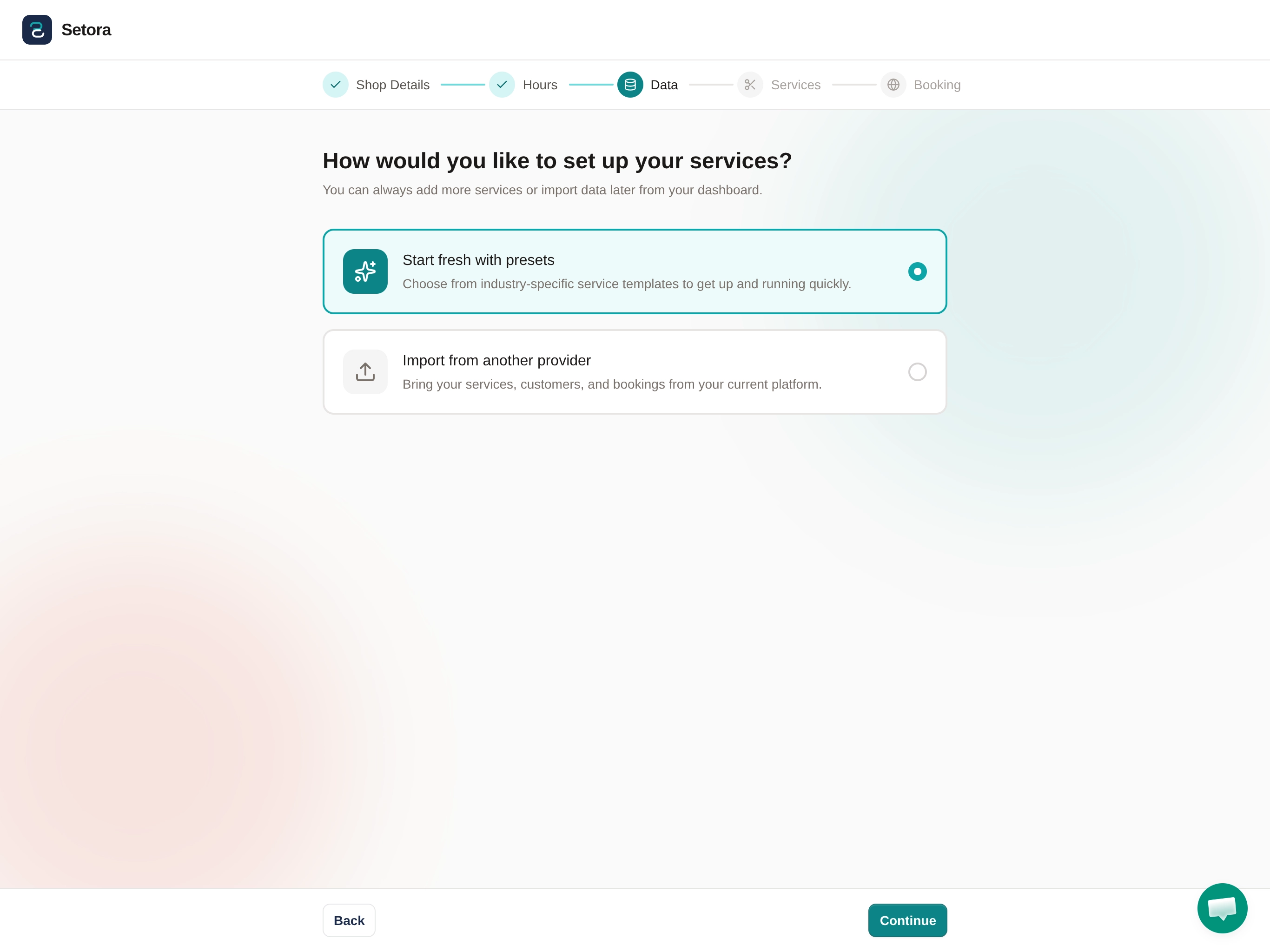
After the import, check a sample of records:
- Do names appear in the right fields?
- Are phone numbers still readable?
- Have email addresses imported correctly?
- Are any obvious duplicates showing?
- Are notes still attached where you need them?
Do not worry if the first file needs tidying. Client exports often contain old duplicates, partial numbers, test records, and clients who have not visited for years. The aim is not to make the database perfect. The aim is to move the useful records safely and keep the shop running.
Step 4: move your public booking links
This is the part clients actually notice.
Make a list of every place your Fresha link appears:
- Instagram bio.
- Google Business Profile.
- Website header, footer, and booking buttons.
- Facebook page.
- WhatsApp Business quick replies.
- QR codes in the shop.
- Email signatures.
- Reminder templates.
- Link-in-bio tools.
Replace each one with your Setora booking link. Then test it from your phone using mobile data, not just the shop Wi-Fi. Open the link, choose a service, pick a barber, and confirm the flow looks right.
This is also where you can make the switch feel calm rather than dramatic. You do not need a long announcement. A short message is enough:
We have moved to a new booking page. Same shop, same team, easier booking. Use the new Setora link for all future appointments.
Most clients do not care which platform sits behind the booking page. They care that the link works, the times are clear, and they do not need to download another app.
Step 5: run both diaries briefly
The risky part of any booking migration is not the client import. It is double-booking.
The cleanest method is:
- Keep existing Fresha appointments visible.
- Stop sending clients to Fresha for new bookings.
- Add blocks in Setora for any future Fresha appointments that are already booked.
- Take all new bookings through Setora from the changeover time.
- Check both diaries at opening and closing for the first few days.
You can also message clients with future Fresha bookings and ask them to rebook through the new link, but that is more admin and can create confusion. For most shops, it is easier to honour existing bookings and let the old diary run down.
If your shop has a lot of future bookings, pick a quieter changeover day. Monday or Tuesday is usually better than Friday afternoon.
Step 6: cancel Fresha only when you have what you need
Do not delete the workspace in a hurry.
Before cancelling or deleting anything, check:
- Client export saved.
- Any useful reports exported.
- Future appointments copied or accounted for.
- Public booking links changed.
- Staff know which diary is now the source of truth.
- Billing and subscription position understood.
Fresha has separate help guidance for deleting a workspace as an owner. Follow their current process, and keep screenshots or confirmation emails for your records.
If you are unsure whether you will need historical reports for accounting, tax, payroll, or disputes, export them first. Storage is cheap. Losing records is expensive.
What Setora will not replace
This is the part most switching guides skip.
Setora does not replace Fresha's marketplace. If Fresha is genuinely sending you profitable new clients every month, you need to weigh that against the commission. Some shops will decide the discovery is worth it.
Setora also does not force you into a proprietary payment terminal. That is deliberate. Most barbershops already have a card machine they understand, with a rate they have agreed. Setora keeps booking software separate from your in-person payment provider.
Setora is also newer than Fresha. Fresha has more years of product development, more enterprise-style features, and a broader beauty and wellness ecosystem. Setora is built narrowly for independent barbershops that want online booking, walk-ins, customer records, reminders, team scheduling, and a predictable monthly bill.
If you want a marketplace, Fresha is stronger. If you want clients booking directly with your shop without a marketplace commission, Setora is built for that.
Your switching checklist
Use this as the final run-through:
- Export Fresha client list.
- Save a backup copy.
- Export any reports you might need later.
- Create Setora account.
- Add shop details, services, hours, and barbers.
- Import clients.
- Test a sample of imported records.
- Copy existing future appointments or block matching times.
- Replace booking links everywhere.
- Test booking from a phone.
- Tell staff which diary to use.
- Send a short client update.
- Monitor both diaries for a few days.
- Cancel or delete Fresha only after the changeover is stable.
That is the whole move. The software work is not the hard part. The hard part is being disciplined about the order.
The bottom line
If you are happy with Fresha and the marketplace is paying for itself, stay where you are. Switching platforms has a cost, even when the technical setup is simple.
But if your clients already know your shop, you are paying per bookable team member, and marketplace commission is starting to feel like rent on your own customer base, moving to Setora is a practical one-day job.
Export first. Import carefully. Change links when you are ready. Then keep the old diary visible until the risk has passed.
Start 14-day free trial - no card required, £39/month per location if you stay.
Sources checked on 5 May 2026: Fresha UK pricing, Fresha marketplace new-client fees, Fresha client export guidance, Fresha workspace deletion guidance, Stripe UK pricing, and ICO data portability guidance.
Common questions
- Can I switch from Fresha to Setora in one day?
- Yes. Most UK barbershops can complete the practical switch in one working day once they have exported their client list from Fresha. The safest route is to export, set up Setora, import clients, redirect booking links, then run both systems side by side briefly while existing appointments clear.
- Can I export my client list from Fresha?
- Yes. Fresha's help documentation says businesses can export their client list from the Clients area if the user has the right permission. Export the file before cancelling, and keep a copy for your records.
- Will my existing Fresha appointments move into Setora automatically?
- Existing appointments usually need to be handled carefully rather than assumed to transfer perfectly. The low-risk approach is to keep the Fresha diary open for bookings already made, block those same times in Setora, and take all new bookings through Setora from your changeover time.
- How much does Setora cost compared with Fresha?
- Setora is £39 per month per location with no marketplace commission and no per-staff software fee. Fresha's UK pricing page, checked on 5 May 2026, lists the Team plan at £9.95 per bookable team member monthly, plus optional payment, messaging, add-on, and marketplace fees.
- Does Setora have a marketplace like Fresha?
- No. Setora does not have a consumer marketplace. Your clients book directly with your barbershop through your branded booking page. That means Setora does not send you marketplace leads, but it also means there is no marketplace commission on bookings.
- Do clients need to download an app to book with Setora?
- No. Clients book through a web-based booking page using their browser. You can add the link to Instagram, Google Business Profile, WhatsApp, your website, QR codes, and reminder messages.
- Should I delete my Fresha workspace straight away?
- No. Export your data first, check your cancellation and billing position, move future bookings safely, and only delete the workspace when you are sure you no longer need access to Fresha records.
Share this guide